


Fully Kiosk Browser & Lockdown
3.9188.00 Reviews
App Specs
- Version
- 1.61.2-play
- Updated On
- License
- Free
- Downloads
- 500,000+
- Developer
- Fully Factory Kiosk Solutions
- Categories
- Business
- Platform
- Android
Screenshots
 Analysis by AppCompare
I find kiosk software most useful when it solves a very specific problem: a device needs to stay focused on one public-facing task rather than behave like someone’s personal phone. That is the niche Fully Kiosk Browser & Lockdown aims at. It is a business app from Fully Factory Kiosk Solutions, but its appeal is not limited to companies; I can also see it helping anyone who wants an Android tablet to serve as a dedicated display or control panel. The key is to treat setup as part of the job, not as a quick wallpaper change.
Start with one clear job for the device
Before changing settings, I would decide what a visitor, employee, or household member should be able to do. A tablet showing a menu has different needs from one opening a staff check-in page or displaying a home-control dashboard. Keeping that purpose narrow makes the kiosk easier to test and reduces the chance that people end up in unrelated apps or system screens.
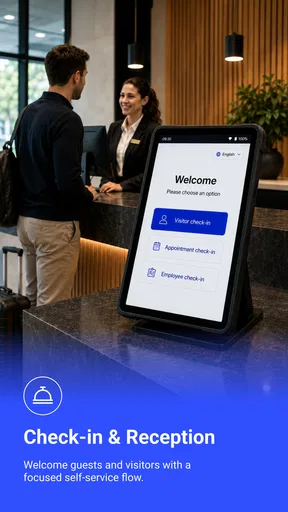
For a small shop, for example, I might place a tablet near the entrance with a product page or a simple information site open. The daily routine could be as ordinary as checking that the page loads, the device is charging, and the screen is still positioned for customers to read. That kind of repeatable check matters more than a clever setup: a kiosk is only useful if it is ready when somebody walks up.
Choose the right level of lockdown
Locking a device down can make a public display less vulnerable to casual tapping, but it also changes how an owner maintains it. I would test the exit and maintenance route before putting a tablet where customers can reach it. A setting that is helpful during public use can become a nuisance if the person responsible cannot get back to normal device controls when it is time to update or troubleshoot.
There is also a practical difference between a display that only needs to show information and a kiosk that accepts input. A read-only presentation can be planned around visibility and uptime. An interactive page needs more attention to what happens after a user finishes, whether the next person sees a clean starting point, and whether browser navigation could lead away from the intended experience. Testing those transitions with someone unfamiliar with the device is a useful way to catch awkward steps.
Make the routine repeatable
I would keep a short setup note for each device: its intended page or app, who can maintain it, and the basic checks to do after a restart or content change. That simple handoff is especially helpful when a business has more than one tablet. Even if every device looks alike, a clear record helps prevent someone from applying a change to the wrong screen or overlooking a unit that has been moved.
The app is free to download, with in-app purchases listed at $10.99 per item. Its average rating is 3.9 from around 2,600 ratings, while roughly 186 written reviews offer a smaller but more detailed pool of user feedback. It has been installed over 500,000 times and is rated for everyone. The current release is 1.60.1-play, and it requires Android 6.0 or later, so I would check the tablet’s Android version before planning a rollout.
Worth Reading Before You Choose

EA SPORTS FC Mobile 26 Is a Bigger Football Game, but It Takes Time

Flipboard Shows What News Apps Must Do Beyond the Feed

Switching to Android Auto Means Rethinking Your Driving Routine

Google Calendar Makes a Crowded Week Easier to Manage

Ludo King Makes the Most of the Minutes Between Plans

Baby Panda World Brings Quick Play to Modern Phones, but Its Game Library Feels Busy
Transforming Your Device
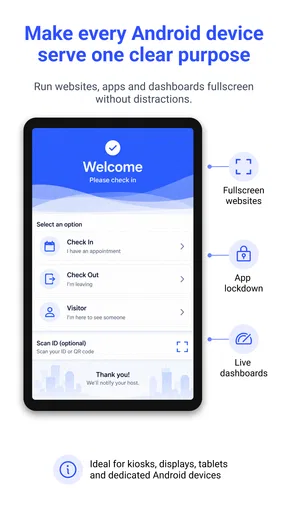
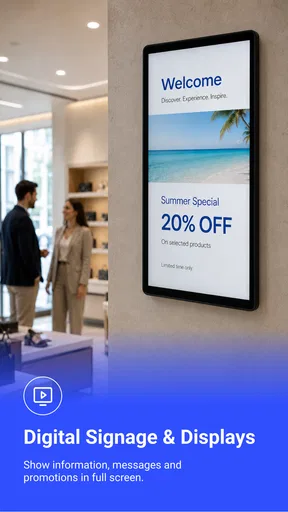
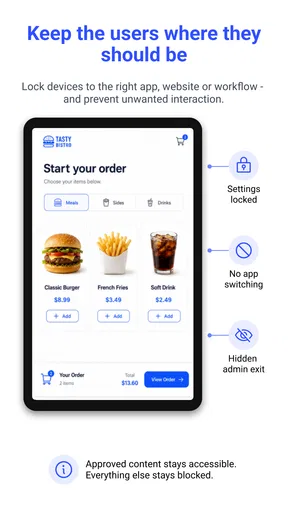
Let's kick things off with what Fully Kiosk Browser & Lockdown is all about. Imagine having a kiosk-like experience right at your fingertips. This app allows you to lock down your device into a single app mode, which is perfect for displaying digital signage, running an information point, or even setting up a secure kiosk at your business. It's like having a digital butler, always ready to serve.
Features That Shine
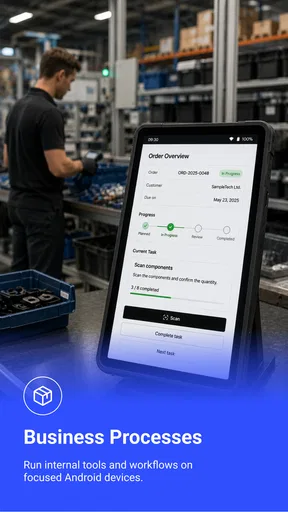
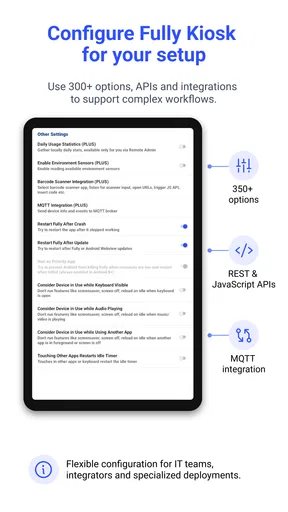
One of the standout features of this app is its versatility. You can easily configure it to run a specific website, app, or multimedia content. Need to display your company’s latest products in a storefront? Done. Want to use it as a home automation control panel? Check. The level of control you have is impressive, and it’s all customizable through an intuitive interface.
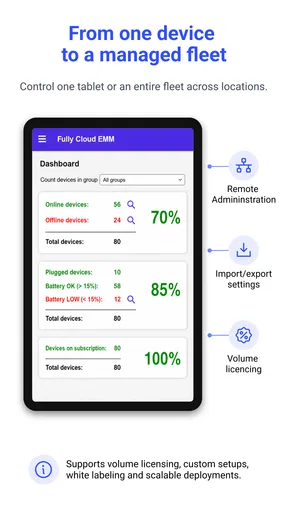
Another feature that caught my eye is the remote management capability. Whether you have one device or a hundred, you can manage them all remotely. It’s perfect for businesses that have multiple kiosks spread across different locations. You can update content, troubleshoot, or even send messages to the device users without leaving your desk.
Security and Stability
Security is always a concern when it comes to devices that are meant for public use, and this app doesn’t disappoint. It offers a robust lockdown feature that prevents unauthorized access to the device. You can restrict access to settings, block the home button, and even disable the power button. It's like having a digital fortress around your device.
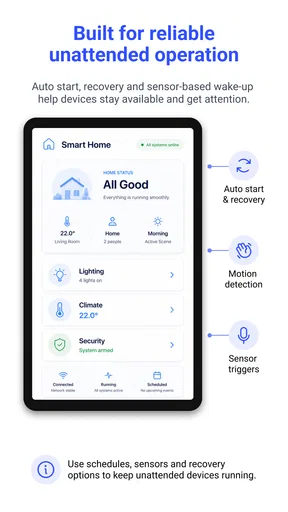
Stability is another area where this app excels. It’s designed to run smoothly without crashing, even when handling heavy multimedia content. Plus, the app auto-restarts if it encounters any issues, ensuring that your kiosk is always up and running.
Getting Set Up
Setting up Fully Kiosk Browser & Lockdown is a breeze. Even if you’re not the most tech-savvy person, the app’s user-friendly setup process guides you through every step. The initial setup includes choosing your default app or website, setting up security features, and configuring any additional settings you might need. The app also provides a comprehensive guide and support community if you get stuck.
Personal Experience
From a personal perspective, I found the app incredibly useful for creating a home control center. I set it up on an old tablet, and now I use it to control my smart home devices, play music, and even check the weather. The app’s ability to keep the screen on and wake up on motion detection is a game-changer. It’s like having an Alexa show but with way more flexibility and control.
Where it fits—and where it does not
Compared with leaving an ordinary browser open, a kiosk setup is better suited to a screen that has a fixed public purpose: visitors should see the intended page, not tabs, saved browsing history, or a route into the rest of the device. A standard browser is simpler for occasional personal use, though, and I would choose that instead if I regularly need to switch between unrelated sites or use the tablet as a normal computer.
I would also separate the browser role from the content itself. Fully Kiosk can present a website, but the page still needs to be designed for the tablet’s size and for touch. Before deployment, I would check that buttons are easy to tap, text remains readable at the viewing distance, and a visitor can recover from a mistaken tap. A locked-down device cannot make a confusing website intuitive.
Small habits that prevent bigger headaches
One useful habit is to test the device from the perspective of the next person, not only from the administrator’s chair. Open the intended screen, try the obvious controls, then see what happens after completing the task. If the kiosk is for a public form, for instance, I would confirm that the next visitor does not inherit the previous person’s unfinished page. This is a workflow check, not a substitute for choosing a site that handles sensitive information appropriately.
For a set of displays, I would change one device first and observe it through a normal operating period before repeating the change elsewhere. That makes it easier to tell whether a problem comes from the content, the tablet, or the configuration. Remote management can make oversight more convenient, but it does not remove the need for a local person who can check power, Wi-Fi, screen position, and physical condition.
Know the maintenance trade-off
A kiosk is less flexible by design. The more tightly I restrict access, the more important it becomes to keep a dependable way to maintain the device and to document who is allowed to do so. If the tablet is used only at home, that discipline may feel unnecessary; in a shop or reception area, it can save time when a page changes or the device needs attention.
I would not rely on any kiosk app as a replacement for a sensible device-management plan. A locked screen can discourage casual exploration, but it does not resolve every concern about physical access, network reliability, or the quality of the content being shown. For a one-off presentation, the setup effort may outweigh the benefit. For a screen that repeats the same task every day, the extra control is much easier to justify.
Personal Experience
From a personal perspective, I found the app incredibly useful for creating a home control center. I set it up on an old tablet, and now I use it to control my smart home devices, play music, and even check the weather. The app’s ability to keep the screen on and wake up on motion detection is a game-changer. It’s like having an Alexa show but with way more flexibility and control.
Final Thoughts
In the end, Fully Kiosk Browser & Lockdown is a fantastic tool for anyone looking to repurpose their Android device into something more functional and secure. Whether you're a business owner, a tech enthusiast, or just someone who loves tinkering with gadgets, this app is a must-try. It’s like turning your device into a Swiss army knife, ready to tackle any task you throw at it. So, go ahead and give it a whirl. You might just find it becomes an indispensable part of your digital toolkit.
My recommendation is strongest when the task is stable and the screen has a clear owner: a reception display, a product browser, or a household dashboard that stays in one place. I would skip it if I need an unrestricted tablet for shared browsing, or if nobody can take responsibility for occasional checks and maintenance. Used with a deliberate setup and a simple routine, it can make an older Android device feel purpose-built rather than merely repurposed.
Pros
- Highly customizable settings.
- Supports remote management.
- Works offline efficiently.
- Integrated kiosk mode.
- Easy to set up and use.
Cons
- Limited free version features.
- Complex for beginners.
- Can slow down older devices.
- Requires subscription for full access.
- Occasional minor bugs.
FAQs for Fully Kiosk Browser & Lockdown
What is Fully Kiosk Browser & Lockdown used for?
Fully Kiosk Browser & Lockdown is primarily designed for transforming Android devices into secure kiosk displays. It allows users to lock down the device to a single app or specific web content, making it ideal for digital signage, information kiosks, and other public-facing applications. This ensures that unauthorized users cannot access other functions or apps on the device.
Is internet connectivity required for Fully Kiosk Browser & Lockdown?
While internet connectivity is required to access web content, Fully Kiosk Browser & Lockdown can also function offline with preloaded HTML content. This flexibility makes it suitable for environments with unreliable internet access. Additionally, it offers advanced caching options to store web pages for offline use, ensuring uninterrupted service.
Can I customize the kiosk interface with Fully Kiosk Browser & Lockdown?
Yes, Fully Kiosk Browser & Lockdown offers extensive customization options. Users can modify the appearance and behavior of the kiosk display, such as hiding the status bar, setting custom backgrounds, and configuring navigation controls. This level of customization helps businesses create a branded and seamless user experience.
How secure is Fully Kiosk Browser & Lockdown?
Security is a key feature of Fully Kiosk Browser & Lockdown. It provides password-protected settings, customizable lockdown options, and remote management capabilities to prevent unauthorized access. Additionally, it supports various security protocols, ensuring that sensitive data and device settings remain protected at all times.
Does Fully Kiosk Browser & Lockdown support remote management?
Yes, Fully Kiosk Browser & Lockdown includes remote management capabilities. Users can remotely control and monitor devices, update content, and adjust settings via a web-based dashboard. This feature is particularly useful for managing multiple devices across different locations, reducing the need for on-site maintenance.


